
ImageCropper
A cropper that runs entirely in the browser. Give it an image, let the user frame it, and get
back a Blob and a File at the
resolution of the original, ready to attach to an upload.
Playground
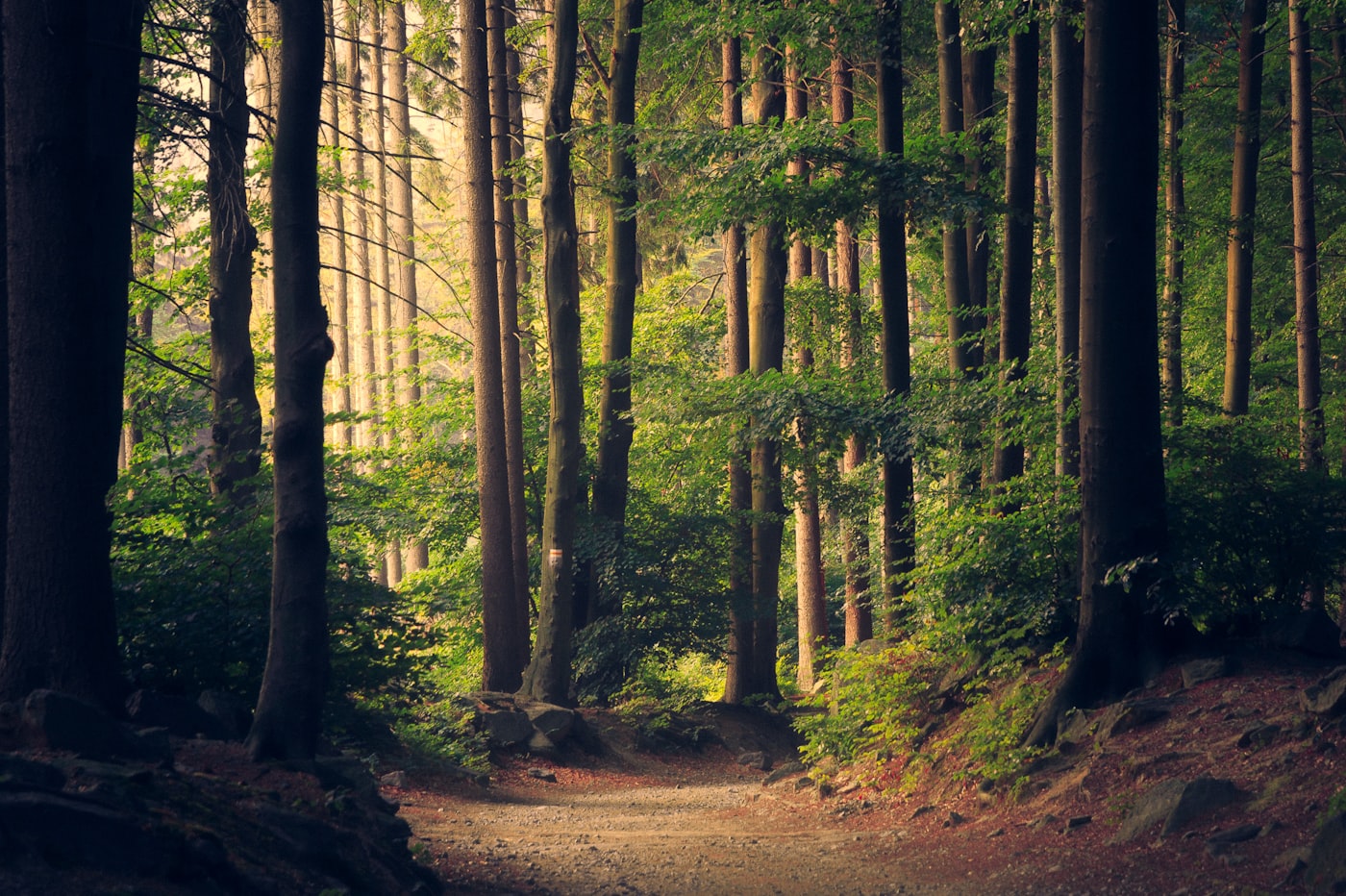
Experiment with different props in real-time.
zoom 1.00x area 0, 0 · 0 x 0Basic Usage
Point src at an image, keep a handle with bind:api, and call crop() when the user is happy. Nothing is cropped until you ask: dragging, zooming and rotating only
move the view.
The result lands here, exported at the resolution of the original rather than the size of the stage.
<script lang="ts">
  import { ImageCropper, Button, type ImageCropperApi } from 'sv5ui';

  let api = $state<ImageCropperApi>();
  let preview = $state<string | null>(null);

  async function crop() {
    const result = await api?.crop();
    // result is null when there is nothing to crop, or when the export failed.
    // The reason arrives through onError rather than as a thrown exception.
    if (result) preview = URL.createObjectURL(result.blob);
  }
</script>

<ImageCropper bind:api src={photo} aspect={1} />
<Button label="Crop" onclick={crop} />

{#if preview}
  <img src={preview} alt="Cropped result" />
{/if}
Two Interaction Models
mode decides
what the user actually drags. The choice matters more than any other prop on this page, so try
both below with the same image.

<!-- fixed (default): the frame is centred and immovable. The user drags and
     zooms the image behind it, and the image always covers the frame, so a
     crop can never contain empty edges. This is the model for avatars and
     cover images, and the one that behaves best under a thumb. -->
<ImageCropper src={photo} mode="fixed" aspect={1} />

<!-- box: the image is fitted inside the stage and stays put. The user drags
     the frame itself and its eight handles. Dragging outside the frame still
     pans the image. This is the model for free cropping of documents and
     screenshots, where the whole picture has to stay visible. -->
<ImageCropper src={photo} mode="box" aspect="free" />
Modes
The same component, two different mental models.
| Mode | Behavior |
|---|---|
fixed | The frame is centred and immovable. The user drags and zooms the image behind it, and the image always covers the frame, so a crop can never include an empty edge. The model for avatars, covers and touch screens |
box | The image is fitted into the stage and stays still. The user drags the frame and its eight handles, and dragging outside the frame still pans the image. The model for free cropping, where the whole picture has to stay in view |
Aspect Ratio
aspect is width divided by height, so 16 / 9 reads exactly as it looks. Changing it while the cropper is open re-fits the frame around the
current centre, which is why a ratio picker like this one feels continuous rather than destructive.
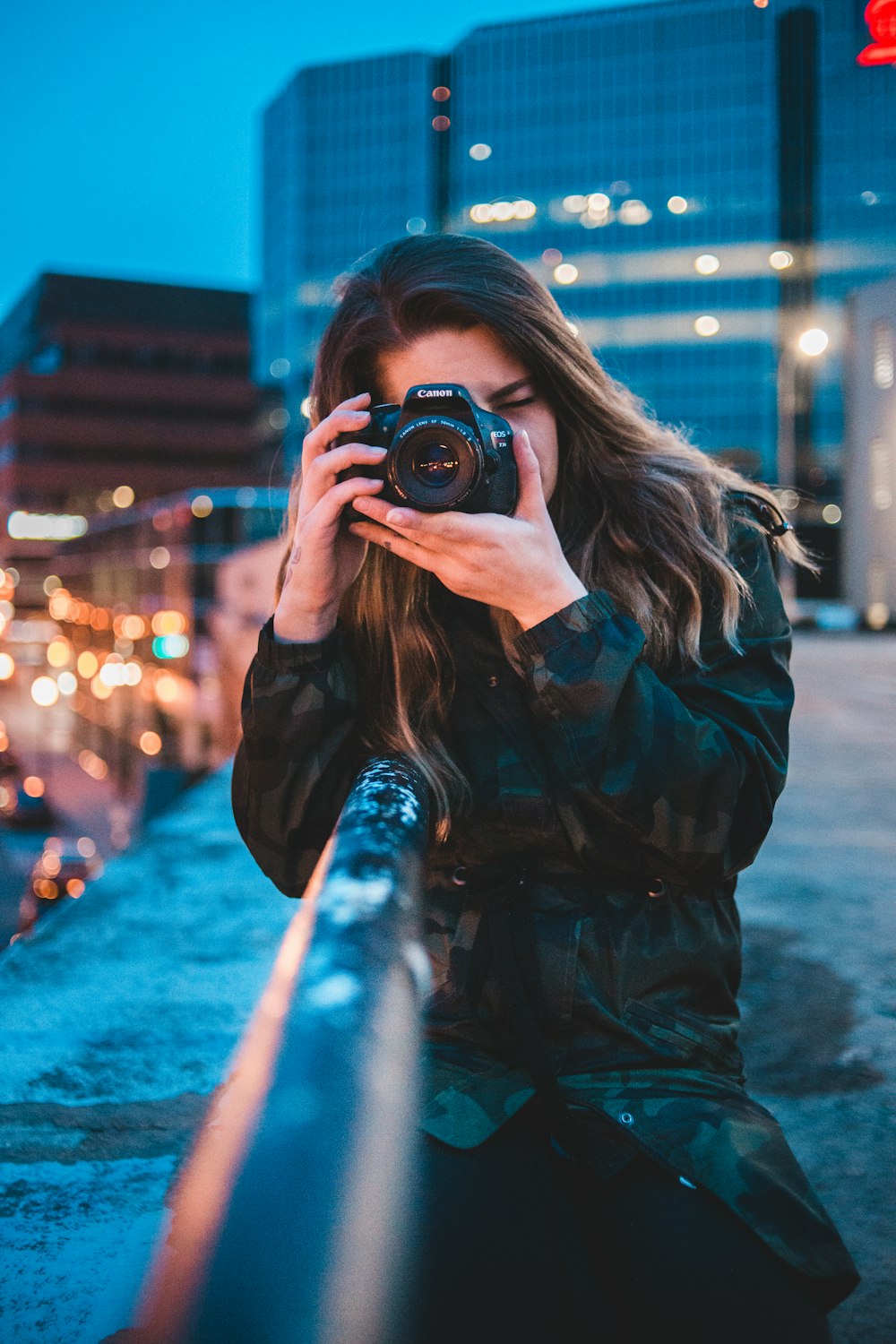
Free is the one value that needs box mode: a fixed frame has no handles to resize it with, so in fixed mode it falls back to the frame filling the stage.
<!-- aspect is width / height -->
<ImageCropper src={photo} aspect={1} />        <!-- square -->
<ImageCropper src={photo} aspect={16 / 9} />   <!-- widescreen -->
<ImageCropper src={photo} aspect={4 / 3} />
<ImageCropper src={photo} aspect={3 / 4} />    <!-- portrait -->

<!-- 'free' unlocks both axes, and only means anything in box mode: a fixed
     frame has no handles to resize it with. -->
<ImageCropper src={photo} mode="box" aspect="free" />

<!-- Changing aspect at runtime re-fits the frame around the current centre. -->
<ImageCropper src={photo} aspect={ratio} />
Where a Free Frame Starts
A fixed ratio always opens at the largest frame that fits, so there is nothing to decide. A
free frame has no such anchor, and where it starts changes what the cropper says to the
person looking at it. initialFrame picks between the two useful answers.
Opens at 80% of the image. The dimmed surround and the handles are visible immediately, and the arrow keys have somewhere to move.
Selects the whole image, so cropping without touching anything keeps everything. Right for an upload flow, where a silent crop would be a surprise.
<!-- inset (default): a free frame opens at 80% of the image, so the crop
     region reads as a frame the moment the cropper appears, and the arrow
     keys have room to move it. -->
<ImageCropper src={photo} mode="box" aspect="free" />

<!-- full: the frame starts on the whole image, so confirming without
     dragging keeps everything. Use it wherever a silent crop would be a
     surprise, which is why the Editor crop dialog passes it. -->
<ImageCropper src={photo} mode="box" aspect="free" initialFrame="full" />

<!-- A fixed aspect ignores the prop: there is only one sensible opening
     frame, the largest one that fits. -->
<ImageCropper src={photo} mode="box" aspect={16 / 9} />
The Editor's crop dialog passes full for exactly that reason: someone who opens it, sees their photo and presses Insert expects the
photo back, not 64% of it.
Circle Crops
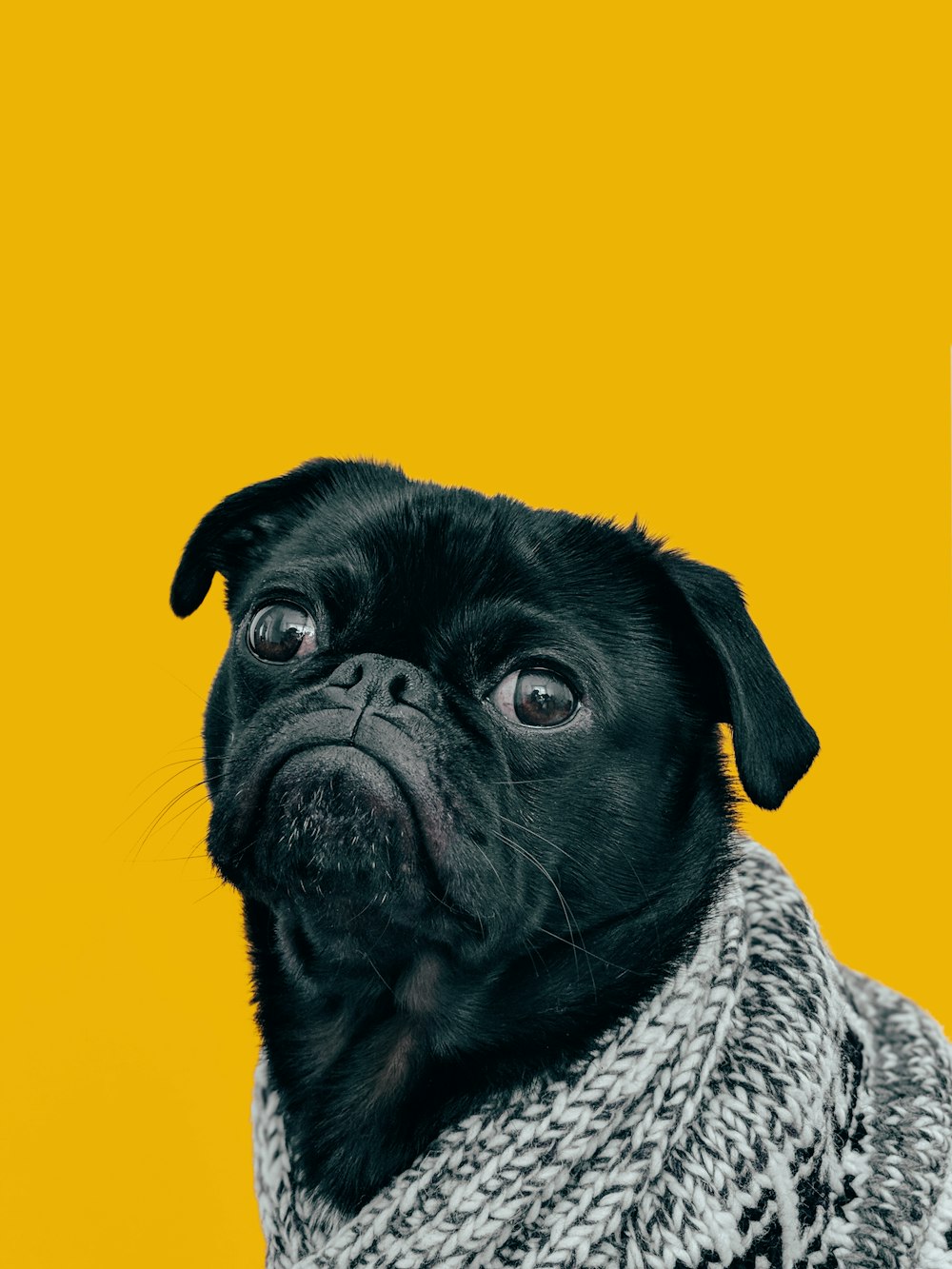
shape="circle" always crops 1:1, so aspect is
ignored. What comes out is a square image with everything outside the circle transparent, and
that transparency is the part worth planning for.
<script lang="ts">
  import { ImageCropper } from 'sv5ui';
</script>

<!-- shape="circle" always crops 1:1, so aspect is ignored. -->
<ImageCropper src={photo} shape="circle" mode="fixed" />

<!-- The export is a square image with everything outside the circle
     transparent, so keep the default PNG... -->
<ImageCropper src={photo} shape="circle" output={{ type: 'image/png' }} />

<!-- ...or paint a background under it when the destination has no alpha
     channel. JPEG defaults to a white background for exactly this reason. -->
<ImageCropper
  src={photo}
  shape="circle"
  output={{ type: 'image/jpeg', quality: 0.9, background: '#0f172a' }}
/>Cropping a File the User Picked
src takes a File or
a Blob directly, so a picker can hand its selection straight over. The object URL behind it is created
and revoked for you, including when the user picks a second file or leaves the page.
Drop files here or click to upload
Pick any image above. Nothing leaves your browser: the upload here is a timer.
<script lang="ts">
  import { FileUpload, ImageCropper, Button, type ImageCropperApi } from 'sv5ui';

  let files = $state<File[]>([]);
  let api = $state<ImageCropperApi>();

  const file = $derived(files[0] ?? null);

  // src takes a string, a File or a Blob. A File or Blob is turned into an
  // object URL internally, and that URL is revoked when src changes or the
  // component is destroyed, so there is nothing to clean up here.
  async function save() {
    const result = await api?.crop();
    if (!result) return;

    const body = new FormData();
    body.append('avatar', result.file);
    await fetch('/api/avatar', { method: 'POST', body });
  }
</script>

<FileUpload accept="image/*" bind:value={files} />

<ImageCropper bind:api src={file} shape="circle" size="lg" />

<Button label="Upload" onclick={save} disabled={!file} />
Zoom
A zoom of 1 is the image fitted to the frame, which is the floor by default. Raise maxZoom for detail work, lower zoomStep for
finer control, and bind the value when the surrounding UI needs to know.
zoom 1.00x Assignments from outside are clamped rather than rejected, so 9 lands on maxZoom.<script lang="ts">
import { ImageCropper } from 'sv5ui';
let zoom = $state(1);
</script>
<!-- zoom is bindable: 1 fits the image to the frame, and an assignment from
the outside is clamped into [minZoom, maxZoom] rather than rejected. -->
<ImageCropper
bind:zoom
src={photo}
minZoom={1}
maxZoom={5}
zoomStep={0.1}
/>
<p>{zoom.toFixed(2)}x</p>
<!-- zoomSlider={false} keeps the toolbar buttons and the wheel, and drops
only the slider under the stage. -->
<ImageCropper src={photo} zoomSlider={false} />
<!-- Double clicking the stage toggles between the minimum zoom and 2x,
centred on the pointer. -->Double clicking the stage toggles between the minimum zoom and 2x, centred on the pointer, which is the fastest way to check a detail and come straight back.
Wheel Zoom and Page Scroll
A cropper that eats the wheel is a cropper the reader cannot scroll past. The default, 'always', is right when the cropper owns the screen, for example inside a modal. In a long form,
prefer 'ctrl'.
Wheel zooms, the page stays put
Wheel scrolls the page, Ctrl or Cmd plus wheel zooms
Slider and keyboard only
<!-- 'always' (default): the wheel zooms and the page does not scroll while
     the pointer is over the stage. Best when the cropper owns the screen,
     for example inside a modal. -->
<ImageCropper src={photo} wheelZoom="always" />

<!-- 'ctrl': the wheel zooms only while Ctrl or Cmd is held, and scrolls the
     page otherwise. Use this for a cropper sitting in a long form, where
     trapping the wheel would strand the reader. -->
<ImageCropper src={photo} wheelZoom="ctrl" />

<!-- false: the wheel never zooms. The slider, the toolbar and the keyboard
     still do. -->
<ImageCropper src={photo} wheelZoom={false} />
Rotate and Flip
The toolbar turns the image in quarter turns, which is what most uploads need. rotationSlider adds free angles for straightening a horizon, and api.rotateTo() reaches any angle programmatically.
rotation 0.0 deg flipX false · flipY false<script lang="ts">
import { ImageCropper, Button, type ImageCropperApi } from 'sv5ui';
let api = $state<ImageCropperApi>();
let rotation = $state(0);
let flipX = $state(false);
let flipY = $state(false);
</script>
<!-- rotation, flipX and flipY are all bindable, so the current transform can
be read, stored and restored. -->
<ImageCropper
bind:api
bind:rotation
bind:flipX
bind:flipY
src={photo}
rotationSlider
/>
<!-- The toolbar rotates in quarter turns. The api reaches any angle. -->
<Button label="Straighten" onclick={() => api?.rotateTo(0)} />
<Button label="-1 degree" onclick={() => api?.rotate(-1)} />
<Button label="Mirror" onclick={() => api?.flip('horizontal')} />
<!-- Free angles are exact in fixed mode. In box mode the frame is bounded by
the rotated image's bounding box, so a frame pushed into a corner can
pick up transparent pixels: prefer quarter turns there. -->Frame Guides and Limits
grid draws the rule of thirds inside the frame, padding decides how much of the image stays visible around it, and minCropSize stops the handles from producing a crop too small to be useful.
<!-- grid draws the rule-of-thirds guides inside the frame. -->
<ImageCropper src={photo} grid />

<!-- padding is the gap in pixels between the stage edge and the frame, so a
     larger value leaves more of the image visible around the crop. -->
<ImageCropper src={photo} padding={32} />

<!-- minCropSize is the smallest frame the handles can produce, in pixels on
     screen. It only applies to box mode, which is the only mode with
     handles. -->
<ImageCropper src={photo} mode="box" aspect="free" minCropSize={96} />
Toolbar
All seven buttons show by default. An array picks which ones appear and in what order, and false removes the bar without removing the shortcuts behind it.
<!-- true (default) renders all seven buttons in this order:
     zoomOut, zoomIn, rotateLeft, rotateRight, flipHorizontal,
     flipVertical, reset -->
<ImageCropper src={photo} toolbar />

<!-- An array picks the buttons and their order. -->
<ImageCropper src={photo} toolbar={['rotateLeft', 'rotateRight', 'reset']} />

<!-- false removes the toolbar. The keyboard shortcuts still work. -->
<ImageCropper src={photo} toolbar={false} />

<!-- Swap individual icons without touching the layout. -->
<ImageCropper
  src={photo}
  icons={{ reset: 'lucide:undo-2', rotateLeft: 'lucide:corner-up-left' }}
/>
Custom Toolbar and Footer
toolbarSlot replaces the default bar entirely and receives the same handle as bind:api, so a product-specific bar can offer ratios, presets or anything else. footer sits
under the stage and is the natural place for a live readout.
<script lang="ts">
  import { ImageCropper, Button, Badge } from 'sv5ui';

  let ratio = $state(1);
</script>

<ImageCropper src={photo} aspect={ratio} zoomSlider={false}>
  <!-- toolbarSlot replaces the default toolbar entirely and receives the
       same api you would get from bind:api -->
  {#snippet toolbarSlot({ api })}
    <div class="flex gap-2">
      <Button size="sm" label="1:1" onclick={() => (ratio = 1)} />
      <Button size="sm" label="16:9" onclick={() => (ratio = 16 / 9)} />
      <Button size="sm" label="Rotate" onclick={() => api.rotate(90)} />
      <Button size="sm" variant="ghost" label="Reset" onclick={api.reset} />
    </div>
  {/snippet}

  <!-- footer sits under the stage, after the zoom slider -->
  {#snippet footer({ api })}
    <Badge label={`${Math.round(api.area.width)} x ${Math.round(api.area.height)} px`} />
  {/snippet}
</ImageCropper>
Output
A crop is rendered from the original pixels, not from what the stage happens to show, so the
result is as sharp as the source allows. maxWidth and maxHeight cap that for upload budgets, and never upscale past the source. Change the settings below and
crop again to watch the file size move.
<script lang="ts">
  import { ImageCropper, type ImageCropperApi } from 'sv5ui';

  let api = $state<ImageCropperApi>();

  async function inspect() {
    const result = await api?.crop();
    if (!result) return;
    // width and height are the exported pixels, area is the region in
    // source-image pixels. They differ as soon as maxWidth or maxHeight
    // downscales the crop.
    console.log(result.width, result.height, result.blob.size);
  }
</script>

<!-- A crop is always rendered at source resolution, not at the size the
     stage happens to be on screen. maxWidth and maxHeight cap that, and
     never upscale beyond the source. -->
<ImageCropper
  bind:api
  src={photo}
  output={{
    type: 'image/jpeg',
    quality: 0.82,
    maxWidth: 512,
    maxHeight: 512
  }}
/>

<!-- The exported File is named after the source when there is one:
     avatar.png becomes avatar-cropped.jpg. Otherwise it is crop.jpg. -->
The exported File is named after the source when there is one, so avatar.png becomes avatar-cropped.jpg. With a string source there is no name to borrow, so it is crop.jpg.
Live Preview with autoCrop
autoCrop crops after every settled change without waiting for a button. true debounces at 300ms and a number sets the delay. Each pass encodes the image, so keep the delay
generous for large sources.
Drag or zoom the image. Half a second after you stop, a fresh file appears here.
<script lang="ts">
  import { ImageCropper } from 'sv5ui';

  let preview = $state<string | null>(null);
</script>

<!-- autoCrop crops after every change without waiting for crop(), which is
     what a live preview wants. true debounces at 300ms; a number sets the
     delay. Encoding runs on every settled change, so keep the delay high
     enough that a drag does not encode a large image on every frame. -->
<ImageCropper
  src={photo}
  autoCrop={500}
  onCrop={(result) => (preview = URL.createObjectURL(result.blob))}
/>

{#if preview}
  <img src={preview} alt="Live preview" class="size-24 rounded-full" />
{/if}
Uploading the Result
bind:value holds the File from
the most recent successful crop, which saves the caller from keeping its own copy. It is written
after every crop, whether it came from a button or from autoCrop.
value is null until the first crop.
<script lang="ts">
  import { ImageCropper, Button, type ImageCropperApi } from 'sv5ui';

  let api = $state<ImageCropperApi>();
  let value = $state<File | null>(null);

  // value holds the File from the most recent successful crop, so the upload
  // handler never has to keep its own copy.
  async function submit() {
    await api?.crop();
    if (!value) return;

    const body = new FormData();
    body.append('cover', value);
    body.append('title', title);
    await fetch('/api/posts', { method: 'POST', body });
  }
</script>

<ImageCropper bind:api bind:value src={photo} aspect={16 / 9} />

<Button label="Publish" onclick={submit} />

<!-- A File cannot travel through a hidden input, so this component does not
     take part in native form submission. Read bind:value and attach it to
the payload yourself, the way the handler above does. -->Saving and Reopening a Crop
area is the
crop region in source-image pixels, and it binds both ways: the component writes the current region
into it, and assigning a region recomputes zoom, pan and the frame to match. Store the area instead
of the cropped file and the original stays intact, the crop stays editable, and changing the output
format later costs nothing.
current 0, 0 · 0 x 0 saved nothing yetDrag the frame somewhere and save it, move it again, then reopen. This is the same round trip a database column would make.
<script lang="ts">
  import { ImageCropper } from 'sv5ui';

  // area is the crop region in source-image pixels, and it is two-way.
  // The component writes the current region into it, and assigning a region
  // recomputes zoom, pan and the frame to match. Persist it and the user
  // reopens exactly the crop they left.
  let crop = $state(photo.crop);

  async function save() {
    await fetch(`/api/photos/${photo.id}`, {
      method: 'PATCH',
      body: JSON.stringify({ crop })
    });
  }
</script>

<ImageCropper src={photo.url} bind:area={crop} />

<p>x {crop.x}, y {crop.y}, {crop.width} x {crop.height}</p>

<!-- Storing the area rather than the cropped file keeps the original intact,
     lets the crop be re-edited later, and means a change of output format
     costs nothing. With a rotated image the area is the axis-aligned
     bounding box of the rotated region, and restoring goes through that same
     box. -->
Events
Drag the image, then use the toolbar, and watch which events fire. onCropStart and onCropEnd bracket pointer gestures only, so a toolbar rotation changes the area without either of them.
Interact with the cropper
<ImageCropper
  src={photo}
  onLoad={({ width, height }) => console.log('decoded', width, height)}
  onAreaChange={(area) => (draft = area)}
  onCropStart={() => (dragging = true)}
  onCropEnd={() => (dragging = false)}
  onCrop={(result) => upload(result.file)}
  onError={(error) => toast.add({ title: error.message, color: 'error' })}
/>

<!-- onCropStart and onCropEnd bracket pointer gestures only: a drag or a
     pinch. Toolbar buttons, the sliders and the keyboard change the area
     without firing them, so use onAreaChange when you need every change and
     the start/end pair only when you need to know a gesture is in flight. -->
Empty, Loading and Error States
The stage has something to say in all three cases where there is no croppable image. The placeholder snippet receives the current status and replaces the default content. For wording alone, the labels prop
is enough.
Choose an image to start cropping
<script lang="ts">
  import { ImageCropper, Icon } from 'sv5ui';
</script>

<!-- The placeholder snippet covers the three states the stage can be in
     without a croppable image. Without it, the component renders its own
     icon and label for each. -->
<ImageCropper src={source}>
  {#snippet placeholder({ status })}
    {#if status === 'empty'}
      <Icon name="lucide:image-plus" class="size-8" />
      <p>Choose an image to start cropping</p>
    {:else if status === 'loading'}
      <Icon name="lucide:loader-circle" class="size-8 animate-spin" />
      <p>Fetching the original</p>
    {:else}
      <Icon name="lucide:unplug" class="size-8" />
      <p>That image could not be loaded. Check the link and try again.</p>
    {/if}
  {/snippet}
</ImageCropper>

<!-- Text only, no markup: labels replaces the default strings, which is also
     where translations go. -->
<ImageCropper
  src={source}
  labels={{
    empty: 'Chua chon anh',
    loading: 'Dang tai anh',
    error: 'Khong tai duoc anh'
  }}
/>
Cross-origin Images
Cropping means reading pixels back out of an image, and the browser only allows that for a
same-origin image or one served with CORS. A host that sends no Access-Control-Allow-Origin therefore fails, and it fails in one of two different ways depending on the crossorigin prop.
Both croppers below point at the same avatar host, which sends no such header.
The browser asks for the image with CORS, the host does not answer, and the image
never loads at all. You get the error placeholder, and onError fires with code load straight away, with a message that names the missing header, since CORS is the usual cause
for a remote image. Crop after that and it reports empty, because there is nothing loaded to crop.
Without the attribute the image is fetched like any other picture, so it displays
perfectly. The canvas it is drawn into is tainted, though, so the export is refused:
crop() resolves to null and onError reports tainted.
<!-- Cropping means reading pixels back out of an image, and the browser only
     allows that for a same-origin image or one served with CORS. A host that
     sends no Access-Control-Allow-Origin fails in one of two ways. -->

<!-- 1. With the default crossorigin="anonymous" the browser asks for the
        image with CORS, the host does not answer, and the image never loads.
        onError fires with code 'load' and the error placeholder is shown. -->
<ImageCropper
  src="https://cdn.example.com/photo.jpg"
  onError={(error) => {
    if (error.code === 'load') {
      toast.add({ title: 'That image host does not allow cropping' });
    }
  }}
/>

<!-- 2. With crossorigin={null} the image is fetched like any other picture
        and displays fine, but the canvas it is drawn into is tainted, so
        crop() resolves to null and onError reports 'tainted'. Nothing is
        thrown either way. -->
<ImageCropper src={url} crossorigin={null} onError={handleError} />

<!-- A host that needs the session cookie, answering with
     Access-Control-Allow-Credentials: true -->
<ImageCropper src={url} crossorigin="use-credentials" />

<!-- The fix is always on the server. When you do not control it, upload
     through your own origin first, or crop the File the user picked, which
     is same-origin by construction. -->
<ImageCropper src={pickedFile} />
Neither failure can be fixed from the client: the image host has to send the header. When
you do not control it, upload the file through your own origin first, or crop from the File the user
picked rather than from a remote URL, which is same-origin by construction and never hits this
at all.
Error Codes
Every failure arrives through onError with one of these codes. Nothing is thrown.
| Code | Meaning |
|---|---|
empty | There is no image to crop yet |
load | The image failed to load. A remote host that answers no CORS header lands here, because the default crossorigin request is refused, and the message says so |
tainted | The image loaded without CORS and tainted the canvas, so the browser refuses to export it |
export | The browser refused to encode the canvas |
Inside a Form
The cropper reads the surrounding FormField: it inherits the field size and switches to the error color while the field is failing. A
successful crop writes bind:value and emits the field's change event, so validation clears the moment the user crops.
<script lang="ts">
  import { Form, FormField, ImageCropper, Button, type ImageCropperApi } from 'sv5ui';
  import { z } from 'zod';

  const schema = z.object({
    avatar: z.instanceof(File, { message: 'Crop your photo before saving' })
  });

  let api = $state<ImageCropperApi>();

  // Form state is a Partial of the schema, so the field starts out absent
  // rather than null. onCrop writes the File into it; bind:value is the
  // alternative when the file also has to live outside the form.
  let state = $state<{ avatar?: File }>({});

  async function onsubmit() {
    // ...
  }
</script>

<Form {schema} bind:state {onsubmit}>
  <FormField label="Avatar" name="avatar" help="Drag to reposition, scroll to zoom">
    <!-- Inside a FormField the cropper inherits size, and switches its color
         to error while the field is failing. A successful crop() writes
         bind:value and emits the field's change event, so the error clears
         the moment the user crops. -->
    <ImageCropper
      bind:api
      src={file}
      shape="circle"
      onCrop={(result) => (state.avatar = result.file)}
    />
  </FormField>

  <Button label="Crop" onclick={() => api?.crop()} />
  <Button type="submit" label="Save" />
</Form>
Submitting before cropping shows the field error, because the schema wants a File and the
state still holds null.
Appearance
color drives the focus ring and the resize handles rather than anything about the image. size sets
the stage height, from 14rem at xs to 24rem at xl, and ui reaches each of the sixteen slots.
<!-- color drives the focus ring and the resize handles, not the image -->
<ImageCropper src={photo} color="success" />

<!-- size sets the stage height and the control sizes:
     xs 14rem, sm 16rem, md 18rem, lg 20rem, xl 24rem -->
<ImageCropper src={photo} size="xl" />

<!-- disabled dims the stage and drops every interaction -->
<ImageCropper src={photo} disabled />

<!-- ui reaches each of the sixteen slots -->
<ImageCropper
  src={photo}
  ui={{
    stage: 'rounded-3xl border-2',
    frame: 'outline-2 outline-primary',
    toolbar: 'mx-auto'
  }}
/>
Global Configuration
Set the defaults once and every cropper in the app follows.
See Theming for the full configuration surface.
import { defineConfig } from 'sv5ui';

defineConfig({
  imageCropper: {
    defaultVariants: { color: 'secondary', size: 'lg' },
    slots: { stage: 'rounded-2xl' }
  }
});
Keyboard Navigation
The stage takes focus and handles these directly. In box mode each handle takes focus of its own.
| Key | Action |
|---|---|
Arrow keys | On the stage: moves the frame in box mode, moves the image in fixed mode, by 1 pixel |
Shift + Arrow | The same move in 10 pixel steps |
Arrow keys | On a focused resize handle in box mode: resizes the frame from that handle |
+ or = | Zoom in by one zoomStep |
- | Zoom out by one zoomStep |
0 | Reset the view: zoom, pan, rotation, flip and the frame |
R | Rotate 90 degrees clockwise |
Shift + R | Rotate 90 degrees anticlockwise |
Tab | Moves between the toolbar buttons, the stage, the eight handles in box mode, and the sliders |
Double click | Not a key, but worth knowing: toggles between minZoom and 2x under the pointer |
Events
Every callback is a plain prop.
| Prop | Signature |
|---|---|
onCrop | (result: ImageCropperResult) => void |
onLoad | (size: { width, height }) => void |
onAreaChange | (area: ImageCropperArea) => void |
onCropStart | (area: ImageCropperArea) => void |
onCropEnd | (area: ImageCropperArea) => void |
onError | (error: ImageCropperError) => void |
Api
Reach these through bind:api, or through the api argument of the toolbarSlot and footer snippets.
| Member | Type |
|---|---|
crop() | Promise<ImageCropperResult | null> |
reset() | void |
zoomIn() | void |
zoomOut() | void |
zoomTo(zoom) | (zoom: number) => void |
rotate(degrees) | (degrees: number) => void |
rotateTo(degrees) | (degrees: number) => void |
flip(axis) | (axis: 'horizontal' | 'vertical') => void |
area | readonly ImageCropperArea |
zoom | readonly number |
rotation | readonly number |
UI Slots
Use the ui prop to override classes.
| Slot | Description |
|---|---|
root | Outer column holding the toolbar, the stage and the controls |
stage | The dark viewport the image is dragged inside. Carries the height for the size |
image | The transformed img element |
frame | The crop frame, including the dimming shadow around it |
corner | The four corner marks drawn on the frame |
grid | Rule-of-thirds guides, rendered when grid is on |
handle | One of the eight resize handles in box mode |
placeholder | Overlay shown for the empty, loading and error states |
toolbar | The button bar above the stage |
control | A single toolbar button |
controls | Column under the stage holding the sliders and the footer |
sliderWrapper | Bordered row around a slider and its icon |
sliderIcon | Icon inside a slider row |
slider | The zoom slider itself |
rotationRange | The rotation range input, hidden by default |
hint | Screen-reader instructions, visually hidden |
Props
Every other prop is forwarded to the root element.
| Prop | Type | Default |
|---|---|---|
src | string | File | Blob | null | null |
alt | string | 'Image to crop' |
mode | 'fixed' | 'box' | 'fixed' |
aspect | number | 'free' | 1 |
shape | 'rect' | 'circle' | 'rect' |
zoom | number | 1 |
minZoom | number | 1 |
maxZoom | number | 3 |
zoomStep | number | 0.25 |
area | ImageCropperArea | - |
autoCrop | boolean | number | false |
wheelZoom | 'always' | 'ctrl' | false | 'always' |
rotation | number | 0 |
flipX | boolean | false |
flipY | boolean | false |
value | File | null | null |
padding | number | 16 |
minCropSize | number | 48 |
initialFrame | 'inset' | 'full' | 'inset' |
grid | boolean | false |
toolbar | boolean | ImageCropperToolbarItem[] | true |
zoomSlider | boolean | true |
rotationSlider | boolean | false |
crossorigin | 'anonymous' | 'use-credentials' | null | 'anonymous' |
output | ImageCropperOutput | - |
api | ImageCropperApi | - |
color | primary | secondary | tertiary | success | warning | error | info | surface | 'primary' |
size | 'xs' | 'sm' | 'md' | 'lg' | 'xl' | 'md' |
disabled | boolean | false |
label | string | 'Image cropper' |
icons | object | - |
labels | object | - |
ref | HTMLElement | null | null |
class | string | - |
ui | Record<Slot, Class> | - |
placeholder | Snippet<[{ status }]> | - |
toolbarSlot | Snippet<[{ api }]> | - |
footer | Snippet<[{ api }]> | - |